Key Takeaways
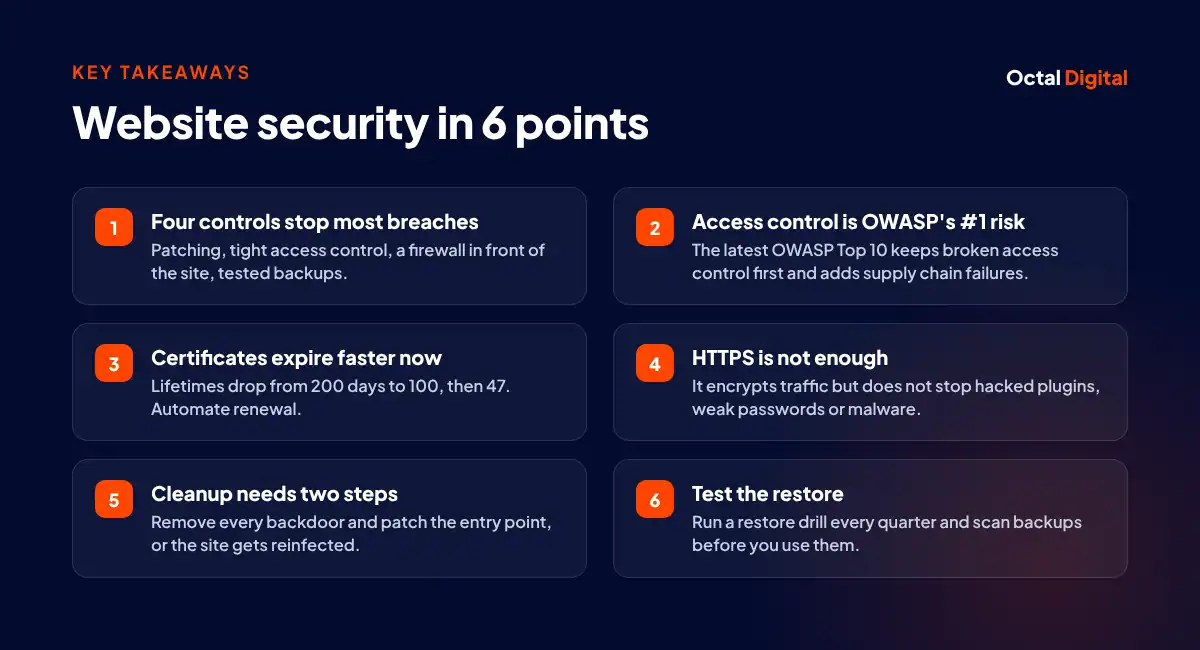
1 min summary- Any outdated plugin, theme or package on a website introduces risk.
- Treat logins from staff and/or contractor accounts in the same way as public traffic until each one is verified with MFA.
- Give accounts that connect to the site's admin area only the minimum privileges needed.
- Use quarterly restore tests as a standard practice instead of guesswork to verify and trust your backups.
- It's important to run the newest release of your CMS and plugins to get current protection, since older releases may miss current security fixes. Be sure to install minor core updates and security patches as soon as they ship.
- Use file integrity monitoring and malware scans. Regularly scanning a cleaned site can help find leftover backdoors before they allow a second infection.
- A web application firewall (WAF) is commonly set up to filter out bot traffic, as well as known plugin exploits.
Every site owner fears the moment they notice their website might be open to attackers. A single hack can hurt your hard-won rankings and sales overnight.
You might think that website security needs costly tools or deep server skills, but that is mostly not the case. Many security controls are actually fairly simple to set up.
In this post, we will take you through the web security techniques that block most attacks and the steps to recover if your site is hacked.
What is website security?
Website security, or web security, is a set of protective controls that may stop unwanted access, changes, or downtime on a website.
Website hacks are made possible by plugin flaws, weak owner or developer logins, or hosting servers themselves. Regardless of motive or method, the effects of a website hack may harm both site owners and their visitors.
The term typically covers, but is not limited to, the layers in the following list:
- Hosting threats impact the server and network connected to your website. Typical examples of hosting can include shared hosting, VPS plans, and cloud servers.
- Software threats impact specific parts of the site’s code. The term software often refers to the CMS, themes, and plugins, such as forms, page builders, and checkout add-ons.
- Account threats impact admin users and logins that control the site and its settings.
What is a website firewall?
A website firewall, or web application firewall (WAF), can block malicious or automated requests and can also keep a list of known bad IP addresses. You can get extra protection by choosing a cloud WAF that filters traffic before it reaches your server.
How do I check if my website is secure?
Is your website, store or blog behaving strangely? Most security gaps are unobtrusive and can’t be spotted with the naked eye. However, there are a few warning signs to watch for that show your site may be at risk.
To check your site, run three free checks (Qualys SSL Labs, Mozilla Observatory and the Security Issues report in Google Search Console) and look out for these warning signs:
- A low SSL Labs grade
- Missing security headers
- Malware in the Security Issues report
- Admin users you don’t recognize
- Reused admin passwords
- Outdated plugins
- Untested backups
- Manual certificate renewals (lifetimes cap at 200 days now, 100 in 2027 and 47 in 2029)
The most common website security threats
Website attacks represent an ongoing risk to blogs, online stores, and business sites around the world. OWASP’s Top 10:2025 showed that there were two changes that matter on its list of web application risks since 2021. As well as keeping broken access control at number one, there is an expanded category: software supply chain failures, and a new one: mishandling of exceptional conditions. It’s easy to think website security is only for large ecommerce brands, but in fact, it’s vital for blogs and business sites of all sizes. There are simply too many automated scanners to ignore the risks.
A website attack is an attempt by attackers to disable sites, steal data, or use a breached web server to launch additional attacks. Website attacks have become more automated in recent years and, as a result, website security is essential for every site owner and business.
Vulnerable plugins, themes, and dependencies
Vulnerable plugins may be points of weakness where an attacker or bot can get in. Outdated code can be considered a threat on its own and a weakness that enables other attacks. This area usually includes some form of known flaw or missed update that can lead to a break-in, defacement, or takeover of a site.
Attackers will use almost any flaw within a plugin, theme or package to carry out a hack. However, most attackers will deliberately target flaws in some of the most common add-ons, since Patchstack’s 2024 data puts roughly 96 percent of disclosed WordPress vulnerabilities in plugins, about 4 percent in themes and under 1 percent in core.
Supply chain and third-party script risk
The most worrying supply chain attacks travel through code you already trust to reach more sites. Third-party links, involved in about 30 percent of breaches in Verizon’s 2025 Data Breach Investigations Report, often use a mix of hijacked accounts and poisoned updates to reach their targets.
Attacks of this kind use the web’s many shared packages to spread. Larger attacks use a popular npm package or plugin update to reach thousands of sites, while more targeted attacks may directly compromise one vendor.
Often, these attacks are delivered through third-party scripts. Attackers prefer to place this code in locations where sites will often load it. Tag managers, analytics pixels, chat widgets, and CDNs are often ideal for spreading a compromised script.
Malware, backdoors, and SEO spam injections
Website malware is malicious code that is deliberately planted to harm a site and its visitors. That’s the short definition, however, to fully understand website malware, it is useful to say that “malware” is a broad term used to describe many kinds of injected code that work in different ways.
So, depending on how it works, each type of malware might be able to do different things. For those asking “What does website malware do,” the answer is that it can carry out a wide range of harmful tasks. These might include:
- Planting backdoors or hidden admin users, such as small PHP scripts, fake plugins, or even rogue cron jobs that reinfect the site after cleanup.
- Injecting SEO spam into a site’s pages and index, flooding search results with junk, and in some cases, the Japanese keyword hack creates thousands of spam pages.
- Taking control of a server to run other attacks, such as a phishing page, or cryptomining scripts.
- Redirecting a visitor’s traffic or mobile clicks.
All of this creates serious risks for site owners and their visitors. For example, injected spam may show up in Search Console as impressions for pages that don’t exist in your CMS, alongside a drop in organic traffic.
Card skimming on ecommerce sites
Card skimmers are malicious scripts. Attackers inject skimming code into the checkout pages of real online stores that have had their security breached. Such scripts are used to run Magecart attacks, in which shoppers on the checkout page unknowingly send card details to a server the attacker controls. They carry a payload that steals card numbers from payment forms or captures login and account details for other services, a common risk for Adobe Commerce and Magento stores.
DDoS attacks and malicious bot traffic
So, what does a DDoS attack do? Short for distributed denial-of-service, this type of attack takes advantage of the hard capacity limits that apply to any server, such as the hosting plan that runs a company’s website. The attack will send floods of requests from many hijacked devices to the target site, with the aim of exceeding the server’s capacity to answer them and stopping the site from loading for real visitors. Typical targets for DDoS attacks include online stores and any business selling services online.
A key part of understanding bot traffic is learning how these bots work. Automated tools, such as scrapers and the scanners Imperva’s 2025 Bad Bot Report tracks, have almost no cap on the number of sites that they can request at once. On top of the capacity limit of your server, the plan that connects the site to the web will also have a fixed bandwidth or quota. Whenever the number of bot requests exceeds the limits of any part of the hosting, the speed of the site is likely to drop.
Phishing pages hosted on your domain
Visitors are affected when they engage with fake login pages, downloads, or provide sensitive info to forms and fake support pages. This contact may also trigger account theft and spread of phishing to other users and sites. It’s not unusual for innocent site owners to unknowingly become phishing hosts themselves.
Some phishing effects are clearly a concern for the whole domain, such as Safe Browsing flags. While a single file is easier to spot, the flag requires careful attention. Any time your domain is flagged in browsers and search engines is when cleanup takes longest.
Cross-site request forgery (CSRF)
To carry out a CSRF attack, the attacker targets a logged-in user’s browser by luring it to a page they own, creating a forged request. The page then starts the attack by sending a hidden form to the browser. In turn, the browser begins issuing requests to the target site with its session cookies, so the site accepts actions the user never meant, like changing an email address or moving funds.
Usually, the attacker’s aim in any CSRF attack is a single state-changing request, like a password reset or payment. Many cross-origin CSRF attempts now fail, since Chromium browsers treat cookies as SameSite=Lax by default.
SQL injection
An SQL injection, sometimes shortened to SQLi, is a type of flaw in which an attacker uses a snippet of SQL code in a form or URL to manipulate a database and get access to customer data. It’s one of the most common and dangerous types of attack because it can be used against any vulnerable web store or website that uses an SQL database (which is most of them).
Since the vast majority of online stores run on SQL databases, an SQL injection can have serious results for site owners. Typically, a web form is built to accept only certain types of data, and parameterized queries, also called prepared statements, stop the database from reading submitted text as a command.
Cross-site scripting (XSS)
If a hacker wants to steal sessions or deface pages, they might inject a script into a page or URL parameter. Alternatively, they may directly infect a comment field with a stored script to run in every visitor’s browser.
When one victim isn’t enough, hackers use XSS in three main forms, stored, reflected and DOM-based, to scale up their efforts. A script can infiltrate a visitor’s browser, session, or online accounts for credential phishing, spam redirects and more. If you don’t encode output, you may be more exposed to XSS.
Brute force and credential stuffing
A brute force attack relies on trial and error to crack login info, admin passwords, or find a hidden login page. Hackers work through all likely combinations hoping to guess right. These attacks are carried out by ‘brute force’, meaning they make repeated attempts to try and ‘force’ a way into an admin account. This is an old attack method, yet rate limiting and lockouts now stop most of it. Depending on the length and strength of the password, guessing it can take from a few seconds to years.
Credential stuffing is different: if an attacker has a username and password that leaked from one site, they’ll try it on lots of others as well. Since people often reuse logins across many sites, this works, and rate limiting does little here, as each attempt looks like a valid password from a different IP address.
Ransomware and extortion
Usually, the attacker’s aim in a ransomware attack is to encrypt the site’s files and database, blocking normal access and resulting in a total outage. The attacker may also demand payment for not leaking the stolen data. In some cases, an attack on a website may even come through ransomware as a service, which has lowered the bar enough that smaller sites see it too.
To beat the attack, the owner restores the site from a clean backup kept off the server, taking away most of the attacker’s leverage.
How do you know if your website has been hacked?
The clearest signs are redirects you never set up, spam pages or Japanese text in your Google results, admin accounts nobody on your team created, and a warning in the browser or in the Search Console Security Issues report. If any one of these shows up, treat the site as hacked and start recovery.
The need for hack detection is real, particularly on small business sites, which rarely have security staff. There are three free checks available to spot a hack on a site. That process is only meant to take about ten minutes, and if all three come back clean, the site is very likely fine. If you already have the urge to restore last week’s backup, wait. Before you kick off, you first need to confirm the site was actually hacked, and if any one check flags something, treat the site as compromised and move to recovery. However, it may not be obvious at first glance. How to tell if a site has been hacked when it looks fine?
You most probably don’t have a security team at your disposal and will have to run a malware scan yourself. In Search Console alone, a Security Issues report shows what Google has already detected. How do you figure out whether the results are clean?
Take a look at this guide on how to read the Google Safe Browsing status and other signs of a real hack.
Before you even start to restore files on the server, first you need to do your homework. This means noting what symptoms you’re actually seeing.
Signs you can see in the browser
There are a few signs that can help you to spot a hacked site in the browser. Take a closer look at your pages and answer the questions below:
Where does my site redirect? Is it only on mobile?
What is on my pages? Do I have popups I never added?
Who changed my homepage? Is the content altered? What text (title or meta description) shows in search results?
Do I get a browser warning saying the site contains malware?
Once you’re done with your answers, write them down, or just take screenshots. Believe us: finding the source of a hack will become way easier with them. These notes will help you start the dialog with your host and ensure a more accurate cleanup.
Signs inside your CMS and server
Once you’re aware of the browser signs, you can start searching your CMS and server. Here are the signs we advise that you check to make sure you find the real problem.
Imagine finding a strange admin account in your dashboard. Would you trust a random user created last week? Well, you would most probably do some digging and first compare the core files against a clean install. Likewise, any PHP file inside the uploads directory is a red flag, since executable code should never live there.
Sometimes simple checks are the best: just open your file manager and start looking around. There’s no better way to check a permission change than to ask your team if they made it. They will precisely inform you about the edits and the timing of their work. Thanks to that, you will spot changes nobody on the team made. For instance, a disabled security plugin or an unknown cron job is a red flag.
Signs in Google Search Console
If you really don’t know where to look on the server, Search Console also offers this check. These reports gather potential problems and provide owners with information about their site like security issues, a spike in indexed pages that match nothing in the CMS, or a traffic drop that can appear before any visible symptom. If you have no time for a full audit, feel free to start there. Simply open the Security Issues report and check its status: it takes seconds and will surely help.
Web security techniques that prevent most attacks
Site owners like you and your developers are where real security starts. These people will need to take six precautions for stronger protection. They can do this with:
- Patching on a schedule
- MFA on every admin login
- Least-privilege access
- HTTPS with HSTS
- A web application firewall
- Tested backups
But as usual, there’s still more work you can do on hardening, like security headers, input handling and monitoring. Bear in mind that a few of these steps may need a developer.
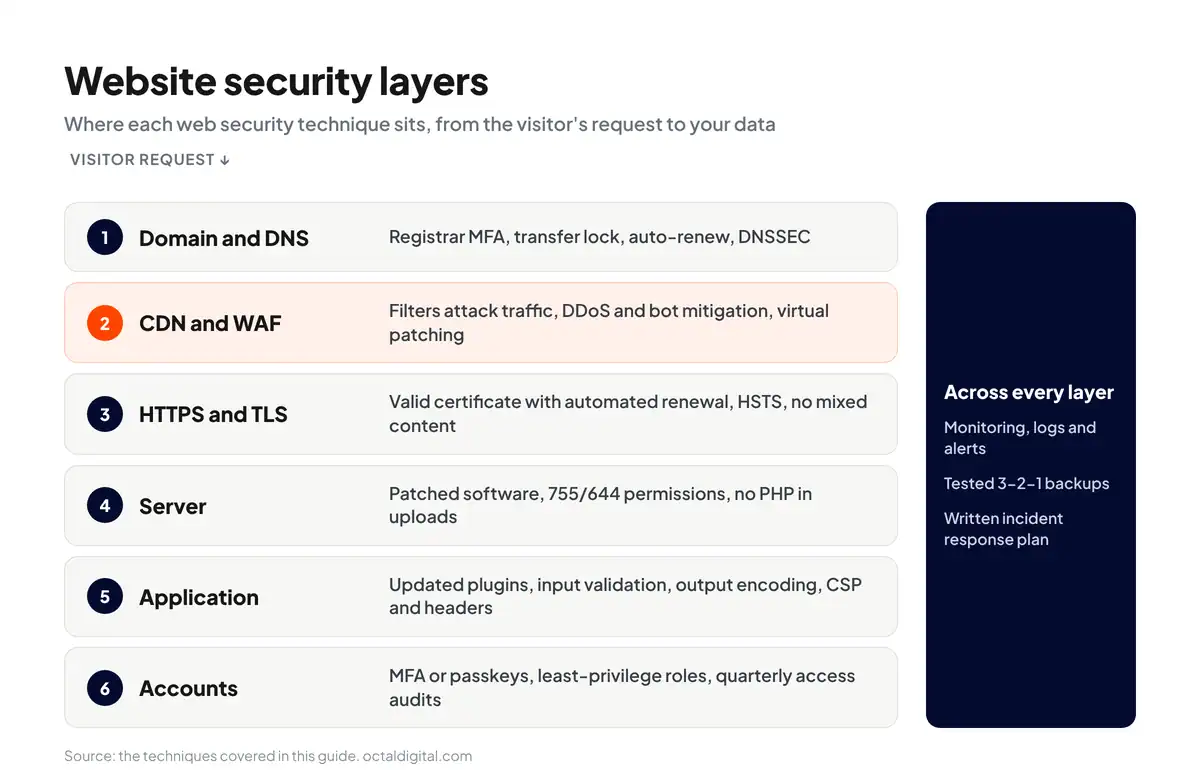
Keep core software, plugins, and dependencies patched
If you have plugins and themes that do not update through the built-in updater (that’s no good), make sure to update them by hand, testing major updates on a staging copy first. Then set a weekly task for yourself to review updates, and turn on automatic security releases where the platform supports it.
Taking a look at your plugin list might be also an inspiration to remove your old installs. Your deactivated plugin still holds every vulnerability in its old code, but you’re not even aware of its existence. The right update routine will take a critical look at your plugins and will remove the unused ones. For instance, WordPress provides site owners with automatic update settings for plugins and themes to help them to keep a strong security baseline.
Configure HTTPS and TLS correctly
Although a padlock should never be the major criterion for judging a site’s security, let’s be frank: the certificate is important, especially for a store, so it pays to know what an SSL certificate actually does. However, we are aware that getting HTTPS running is not the same as configuring it correctly. First of all, go back to the server and enable HSTS for your domain. It will surely stop browsers from loading the site over an insecure connection on later visits, even when a user types http, and will help you keep every visit encrypted.
When checking the certificate, remember to always look at mixed content too. The image or script loading over HTTP on an HTTPS page might seem harmless, but bears the risk of a warning or a block.
Don’t fall for an illusion: make sure your certificate will not turn into an expired warning page in the long run. Believe us: when you’re running a busy site, you don’t have the spare time to remember manual renewals. You must be aware that one of the common gaps in HTTPS setups is an outdated TLS version, usually left enabled for legacy compatibility.
Strengthen authentication with MFA and passkeys
For instance, many admin panels still work within the ‘password only’ method. It is based on one secret that a single phishing page can steal. To put it simply, each admin account without MFA generates additional risk. The right login setup should provide you with a passkey or authenticator app on every admin-level account. It should also steer you away from SMS codes, since SIM-swapping attacks target them.
Apply least-privilege access and audit roles quarterly
As a content editor, you don’t need to have full admin capability, but the site’s owner definitely should. This is why you don’t want a shared admin login, but a real role for each person that will match their part of the project. To make sure the roles will offer you the best available protection, give every account the minimum access its job needs, and nothing more. OWASP ranks broken access control as its top category for 2025, for good reason. If the contractor who needed temporary access six months ago still has it, this is one of the things that distinguish neglected sites from safe ones.
How many accounts does my site have? Is each one an active user, a former contractor, or an employee who left months ago?
Do I have the full user list? Do I need help with role settings?
Where do I want to grant admin access? Is it for the owner, the developer, or maybe both of them?
Do I need editors with plugin, theme, or user permissions?
What is my offboarding process? What is the last step when a project ends?
Who has my hosting login? Who is the real account owner?
What access do they really need on my site?
A good and regular quarterly audit should provide you with clean roles and a clear picture of who can log in.
Harden file permissions, uploads, and server config
One way to harden your server security is by blocking PHP file execution in folders where it isn’t needed, like the uploads folder.
Note: This step works for sites running on any Linux web server (which is what most shared hosting companies use), though Nginx needs it set in the server config. If you are using a managed cloud host, they likely handle this for you, and AWS consulting services can extend it to security groups and IAM roles.
Hackers can use directory listing to check whether you keep any files with known flaws, so they can exploit those files to get in.
Open folders can also let others look into your files, copy backups, view your folder structure, and read config files. This is why we strongly recommend that you turn off directory listing, set directories to 755 and files to 644 (never 777 on production), and rename default admin paths where the platform allows.
Lock down your domain and DNS
In many small businesses, the domain was registered under one old email. Since the registrar controls where your DNS points, this made it simpler for hackers to take over whole sites.
Thankfully, most registrars now let you add multi-factor authentication at the time of logging in.
However, some older registrar accounts might still have the transfer lock and auto-renew set to ‘off’. If you find that is true, then it’s likely a good idea to fix your registrar settings today.
Since registrars don’t lock DNS changes by default, there are two methods you can use to lock it down:
- Review who can log in and change DNS records
- Turn on DNSSEC at your DNS host to stop forged DNS answers
Note: To be clear, we mean the registrar login, not your hosting account, which also controls DNS in some setups.
Add security headers and a content security policy
A content security policy (CSP) is a security header that helps control which sources your site loads scripts, styles and images from. It works alongside other headers such as HSTS.
However, because of its strict nature, a CSP can easily break the scripts you rely on.
For example, if your site loads a chat widget from a third-party CDN, you would have to list that domain in the script-src directive. The report-only mode can catch and log this.
But with report-only mode, you can use the violation reports to find every missing source before, say, switching enforcement on.
This is why, if you are adding a CSP, we suggest that you start with this header:
Content-Security-Policy-Report-Only: default-src 'self'; script-src 'self' https://trusted-cdn.example.com; style-src 'self' 'unsafe-inline'; img-src 'self' data:; report-uri /csp-report-endpoint
Tip: A CSP is one of the best XSS defenses because, once enforced, it blocks any script the policy doesn’t list. Other headers are easier to add first.
Validate input and encode output
By default, most forms take whatever text a visitor enters as input for every field. If your site shows that input without encoding it, this makes it simpler for attackers to run scripts in other visitors’ browsers. This is why we recommend validating input and encoding output.
You can show user HTML safely by running it through a sanitizer such as DOMPurify first.
Note: Skipping the sanitizer, or setting it up wrong, can break this protection. Only show raw HTML if you trust its source.
Run a web application firewall
While the free scanners we cover below help you find issues on your site, they can’t stop attacks as they happen. For this, your site needs a web application firewall (WAF).
A WAF is also the quickest way to cover a plugin flaw and be confident until the patch lands, through virtual patching.
A cloud firewall filters most attack traffic before it even reaches your server. A DNS-level WAF sends your site’s traffic through its proxy network. This lets it pass mostly real visitors to your web server and gives wider coverage.
A plugin-level firewall checks the traffic after it hits your server, yet before most of your code loads. This option needs no DNS or hosting changes, but it does not cut server load as well, and no WAF fixes the flaw itself.
Automate backups and test the restore
Backups are your last line of defense against any website attack. Remember, no site is 100% secure. If large brands can be hacked, then so can your site.
Backups let you quickly bring back a clean version of your site in case something goes wrong. There are many free and paid backup tools and hosting plans that you can pick from.
The most important rule when it comes to backups is the 3-2-1 pattern: three copies on two storage types, with one kept offsite (not on your hosting account). Based on how slowly an infection can spread, the retention window should reach back further than a 7-day rotation.
Thankfully, your backups can be checked by running a restore drill on a staging copy every quarter, before an incident forces one.
Monitor, log, and alert
If you have file integrity monitoring set up, then it will routinely check for changed core files and signs of a breach.
However, if you want to catch what OWASP’s 2025 list calls logging and alerting failures, then you also need uptime checks and failed login alerts. You can set these up using your security plugin or one of the many uptime and log monitoring tools.
Setting up these alerts is quite simple. You just add your site and login events, and the tool watches for an outage or repeated failed logins before a brute-force breach.
Now, keep in mind that most alerts can only tell you something happened. They usually can’t tell you how, so set a log retention window long enough to investigate a compromise found weeks later.
Website security tools that prevent attacks and support recovery
After backups, the next thing you need to do is pick a set of security tools that watches what is happening on your site.
This includes free malware scanners, paid firewall plans, dependency scanning, and more.
Luckily, you can easily cover this by picking from the best cybersecurity tools and software, sorted into three groups below.
Free tools worth running first
You need to run the free checks first: remote malware scans, ZAP (formerly OWASP ZAP) for vulnerability scans, Google’s Safe Browsing status, Search Console alerts, Let’s Encrypt certificates and Cloudflare’s free tier.
That lowers your risk, but strictly speaking, free tools are mostly for finding problems and scanning, not a full managed firewall.
Paid protection: WAF, scanning, and cleanup
The best part about a paid plan is that it also includes a managed WAF and, on mid-tier plans, a cleanup guarantee. That means if your site were hacked on their plan, they promise to clean your website, usually no matter how many files are hit.
This is a fairly strong guarantee because cleaning hacked websites is costly. Security firms usually quote a cleanup per site, while you can get a full managed WAF plan for a few hundred dollars a year.
Developer and dependency scanning tools
On a custom-coded site, you share the codebase with many npm packages and third-party scripts. There is a risk of supply chain compromise where an attacker can use one package to attack your site.
By contrast, using a packaged CMS like WordPress leaves more of that patching work with plugin vendors, though you still apply their updates. Here are just a few tools that work in the background to protect custom code:
- Software composition analysis (SCA) tools check your packages for known flaws.
- Most code platforms support bots that open a pull request for each new package version.
- A software bill of materials (SBOM) lists your packages and versions to help you spot a known flaw in older releases fast.
What website security costs in 2026
In most cases, security tools are cheap, costing anywhere from $0 to about $1,250 each year. Prices change often, though, so check each vendor’s pricing page for current figures.
| Option | Typical annual cost |
|---|---|
| Free tools | $0 |
| Wordfence Premium | Around $149 |
| Sucuri platform plans | Roughly $230 to $550 |
| Cloudflare Pro | Around $240 to $300 ($20 to $25/month) |
| Wordfence Care / Response | Around $590 to $1,250 |
| One-time emergency cleanup | Quoted per site |
Platform-specific website security
Your platform plays a big part in the security of your website. A hosted platform like Shopify, Squarespace, or Wix takes added measures to protect its servers against common attacks.
Here are just a few ways the security work splits between the platform and you:
| Platform | What you secure |
|---|---|
| WordPress | Plugins, themes, user accounts, file permissions |
| Shopify | App permissions, staff accounts, theme code |
| Drupal | Contributed modules, custom code, patch timing |
| Adobe Commerce / Magento | Extensions, checkout code, applying core patches |
| Custom applications | Authentication, access control, dependencies, everything else |
WordPress security
WordPress is open-source code and is closely maintained and patched. By default, WordPress automatically installs minor core updates.
For plugins, you need to vet each one before you install it.
WordPress also works with thousands of page builders, forms and store add-ons that you can add to your website. These add-ons come from third-party developers, and some stop releasing updates entirely.
These abandoned plugins are a liability for the safety and stability of your site. You should make sure that admin accounts are limited and the file editor is off (define('DISALLOW_FILE_EDIT', true); in wp-config.php), or let our WordPress support and maintenance team handle it.
Shopify security
By contrast, using a hosted store like Shopify provides a more locked-down platform for your business. Shopify handles PCI compliance, checkout security, and core platform patches to protect your store. It takes care of many technical tasks in this guide for you.
On a Shopify plan, you share some of your store data with every app you install. There is a risk of over-permissioning where a weak app can expose your customers’ data.
We recommend a quarterly review of app permissions and staff accounts as the main Shopify task. Our Shopify support and maintenance team can run it, or you can follow our guide to improve Shopify store security.
Drupal security
By default, Drupal gives users a security team that handles flaws in core and covered modules as often as it needs to. This leaves your Drupal site with published advisories and patch timelines. The gap after an advisory is when hackers try to break in, by trying to exploit the flaw before you patch.
This can be easily fixed by setting a fixed window for each patch your team applies. If you are using the Drupal support and maintenance service we offer, then this is mostly taken care of.
Adobe Commerce and Magento security
Adobe Commerce stores can sometimes go weeks without a patch, and this creates a security risk. Someone can inject a skimmer, steal card details, or make changes to the checkout scripts. This is why PCI DSS 4.0.1 asks stores to account for and monitor every payment page script.
You can set up similar safeguards on your Magento store as well. You will need to apply every core security patch and review each extension. Upon launch, check whether your Magento cloud hosting adds hardening a self-managed server lacks. Simply set a patch window and add Adobe Commerce support and maintenance if you lack in-house coverage.
Custom web apps: React, Next.js, Node, and Laravel
Frameworks are built to handle, automate, and speed up a developer’s ability to ship secure features. React and Angular escape output by default, so a small team makes fewer XSS mistakes on their own. But, with a little code and a bit of time saved, dangerouslySetInnerHTML can switch that protection off for any content it renders.
A Next.js app runs a collection of server code with environment variables. Once it’s deployed, the server uses those variables to hold API keys and database credentials. The team managing the app may have set up a .env file or be pulling secrets from a secrets manager.
Leaked secrets, or exposed keys, refer to each credential that’s been committed to version control. These keys need rotating, and Node and Laravel apps should keep them in a secrets manager or follow a secure web application development process.
Our team handles updates, backups, and security monitoring for WordPress, Shopify, Drupal, and Adobe Commerce.
- A written scope and cost range
- Fixed price or hourly, your choice
- 5.0 rating from 250+ client reviews
How to fix a hacked website
For site owners experiencing a website hack, it’s important to act fast, but skipping ahead to cleanup before containment or credential resets is the most common mistake. The aim should be to stop the hack and limit its spread, in this order: contain, reset credentials, scan, clean, patch, restore, request review and recover rankings.
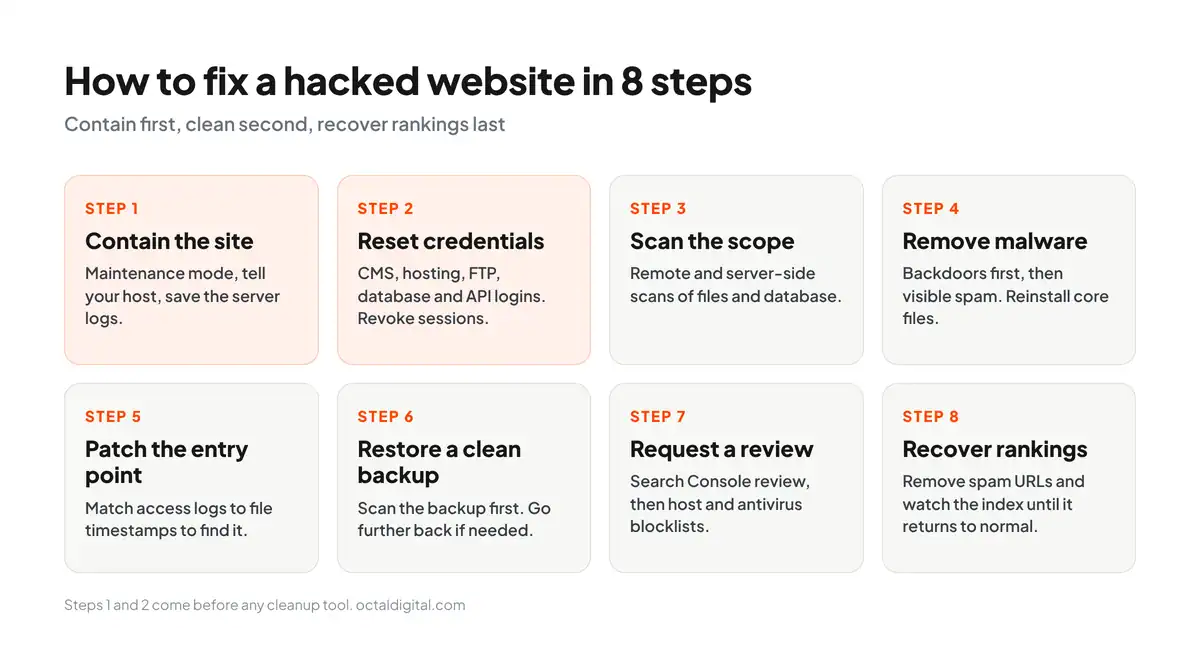
Why most cleanups fail
For a malware cleanup to last, owners need to remove every backdoor (the attacker’s hidden way back in). A backdoor is a hidden script, often a single file, that lets attackers return and reinfect the site. The cleanup will also need to patch the entry point the attacker used, preventing a reinfection within weeks. Security firms charge a fee for cleaning a hacked site.
Once the site is clean, it needs to be backed up regularly and restore-tested on a quarterly schedule. Managed hosting services can usually handle the backups for site owners. Once it’s scanned for malware before use, the backup will be safer to restore, because slow infections often predate the most recent backup and sit inside it.
Can you clean up malware yourself?
Technically, anyone can clean up their own hacked site by removing every backdoor, patching the entry point, restoring a scanned backup and resetting all admin logins. Such cleanups are called DIY cleanups because the person doing the work, instead of being a security firm, would be the website’s own owner or developer.
But with DIY cleanups, there’s no outside specialist to verify that every backdoor is gone and the entry point is patched.
Step 1: Contain the site
The first thing to do is switch the site to maintenance mode, not offline. Tell your host right away, since many hosts have their own detection systems. Saving the server logs before any cleanup will help you find where the attacker got in and how best to contain and recover from it. As well as saving the logs, it’s important to hold off on deleting files, since the evidence and its timeline vanish once cleanup starts.
Step 2: Reset credentials and revoke sessions
Change all CMS admin, hosting, FTP, SFTP and database passwords to secure values. This means long and randomly generated is best. If you’re thinking “how will I remember all those?” then you’re probably not using a password manager yet, and you really should be. Do not skip over this; weak passwords are likely the number one way attackers get back in.
Then finish the reset:
- Change the security keys (salts) in wp-config.php to end all sessions
- Reset domain email and API credentials
- Delete admin accounts nobody created
Step 3: Scan and confirm the scope
If your host offers a server-side scanner, log in to your control panel and run it. You’ll see changed core files, injected database tables and folders with new files there. You can ask your host to run a deeper scan via support ticket, or if you’re on a VPS, run one yourself.
If your server doesn’t have one, you can alternatively install a security plugin and run a scan. A remote scan alone might not always be good at finding backdoors, since it can’t see your database or file system.
Step 4: Remove malware and backdoors
An extremely effective tactic is to remove backdoor scripts first, then replace core files with fresh copies. Backdoors often hide behind names that look like system files, so look in the uploads folder: it should hold only folders, images and documents, and you shouldn’t find any .php files in there.
Replacing core files ensures that if any of them were infected, they sure aren’t any longer. Many hacks inject code near the top or bottom of a file, so check the start and end of every theme file, and replace or repair any defaced pages.
Step 5: Patch the entry point
Look through your access logs and file timestamps to see if anything looks amiss. Look for plugins and themes that might have been uploaded or changed unexpectedly. Look for files that you don’t remember existing before; they may point you to where the entry point lies or what the hack changed. Then update or delete whatever let the attacker in.
Step 6: Restore from a clean backup
If you restore from a backup, scan it first. Why scan a backup? If the infection sat dormant for weeks, it’s likely to include the hacked files.
Make sure that when you pick the restore point, it predates the breach date in your logs, so you don’t restore an infected copy thinking it’s an OK restore point. Depending on that date, you may need to go further back.
Step 7: Request review and clear blocklist warnings
Once the site is clean and patched, request a Search Console review (Google’s own documentation on hacked sites explains how), which typically clears the flag within a few days to several weeks.
Then check the common website blocklists to make sure you didn’t end up in one of them, such as Safe Browsing, your host, or antivirus vendors like Trend Micro and McAfee. If you did, follow their steps to get yourself removed, which can take longer.
Step 8: Recover lost rankings
Use this step to get your rankings back, which many guides skip. So, how to protect your rankings against lasting damage?
For all hacked sites, making sure that injected pages are removed from the index is essential. Run regular, careful Search Console checks so that you know to:
Delete injected pages the attacker created
Request removal of indexed spam URLs
Think twice before calling the cleanup done. If a page looks clean, it may not be. Check via a crawler’s view of the page in question before trusting a result you are unsure of
Weekly checks, cleanup and monitoring until indexed page counts and impressions return to their pre-hack baseline will reduce the likelihood of cloaked spam pages surviving the cleanup.
Build an incident response plan before you need one
Teams often lose time working out who has access to what, which can be written down early and used to cut response time and therefore further limit damage. In the event of a website hack, it’s important that your plan is written as a runbook to prevent guesswork, lost time and missed steps under pressure. Without a written plan, your team could itself be the bottleneck that delays your cleanup, even if you have solid security measures in place. Make sure you list all key contacts, including host and developer details.
Although you cannot remove the risk of a hack altogether, you can put a plan in place to review your response on a regular basis. Record who has access to what and regularly check backup locations, logins, and contacts to ensure your plan is fully current. Adapt the eight steps above and walk through them to see how the cleanup process will work for your site. Identify gaps beyond the website, devise ways to close them and use NIST’s incident response guide (SP 800-61) as a reference. Remove old contacts to reduce the risk of your team wasting time trying to reach the wrong people.
When to call a professional
If the site is reinfected after a cleanup, bring in a professional who can find the vulnerability that’s still open. Put ecommerce sites in that group. For example, treat any compromise of an online store handling card data as a professional-level incident, given the PCI implications.
Minimize the risk of a second hack by handing database-level infections to a specialist with the tools to verify that the data is clean from table to table. An unknown entry point means pausing the general cleanup and bringing in the deeper expertise needed to finish the investigation. One of the risks for site owners is having a cleanup that removes the malware but leaves the vulnerability that could let it back in. Handing off the investigation or even just the scan on your server is beneficial to your recovery.
We remove malware, close the entry point, and clear browser and search blocklist warnings.
Website security checklist
Placing your site on a regular check schedule is one of the most effective ways to protect yourself from a website hack. A simple checklist will help to catch problems made worse by delay on your site or server before they can do any damage.
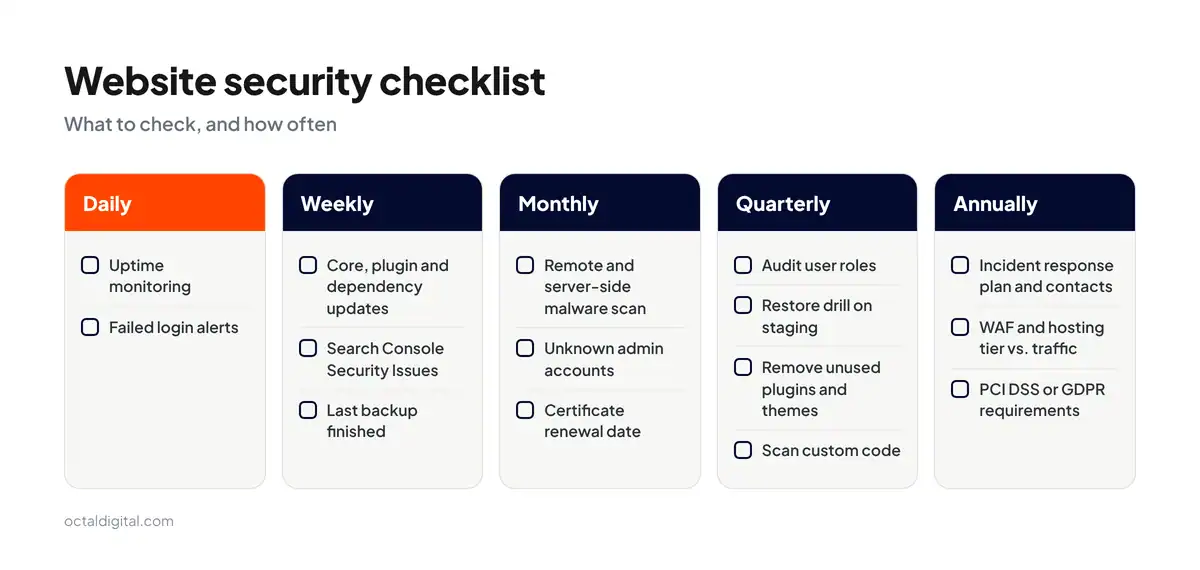
Daily
Check uptime monitoring before starting work
Check failed login alerts from your security setup
Weekly
Check for core, plugin and dependency updates
Check the Search Console Security Issues report
Confirm the last backup finished without errors
Monthly
Check for malware with a remote and a server-side scan
Check admin accounts for any you don’t recognize
Check the SSL/TLS certificate renewal date
Quarterly
Audit user roles and remove old access
Run a restore drill on staging
Remove inactive plugins and themes
Scan custom code for known flaws
Annually
Check the incident response plan and contact list
Check WAF and hosting against current risk
Confirm PCI DSS or GDPR requirements are still met
What a hack actually costs you in search
If you’ve ever considered what a hack does to traffic, you’ve probably wondered, “How much will a hack cost me in search?”
At Octal Digital, we know a thing or two about maintaining secure sites, so we can help you answer this hard question.
First, let’s take a look at how fast a hack can hit your rankings.
The most immediate impact is deindexing, since search engines can remove compromised pages while the hack is active.
And there are severe cases handled by the biggest search engines, with the entire domain treated with less trust while the hack is live.
Whether a page is dropped from the index or stays in it with a warning in front of it, there’s always a cost in lost clicks.
The chances of clicking past a blocklist warning are far lower than the chances of backing out.
Of course, you could find next to nothing in the index by catching the injected spam yourself early.
Or, if you catch it late, you might find thousands of spam pages in the index when it normally has a few hundred.
Either way, index bloat is the slower damage your domain can fall into.
And if you want to get more specific, all that low-quality spam can pull down how search engines rate a whole domain, not just a few pages.
We covered the cleanup above.
One factor that influences the speed of your search recovery is the removal of the spam, since search engines must recrawl the site and confirm it’s gone before trust comes back.
A clean site takes much less damage, while a reinfected site will wind up costing more.
Rankings that took months to build typically take weeks to recover.
There are a lot of steps to recover here, and step 8 is as important as the cleanup.
Compliance requirements that affect website security
Compliance can often seem like a lot of work for small businesses, but that doesn’t have to be the case. With the right facts and the right help, it can be handled (and met) without too much trouble.
What is PCI DSS?
PCI DSS is short for Payment Card Industry Data Security Standard, and the current version is 4.0.1. It is a global data standard which was created by the largest names in the card payment world (Visa, Mastercard, American Express, Discover and JCB) to help sites take card payments safely and securely, and to avoid card fraud.
The standard sets strict rules on the handling, storage and transfer of cardholder data, including script integrity on payment pages, as the PCI Security Standards Council publishes.
Who needs to be PCI DSS compliant?
All sites that take card payments at checkout. If your site processes, stores, or transmits card data then you fall under PCI DSS. It doesn’t matter how big or small your store may be, you are required to follow the standard.
What about GDPR and HIPAA?
You may fall under GDPR even outside the EU, if you handle EU residents’ data, which ultimately may require you to report a breach within 72 hours. In the event of a health data breach, HIPAA will apply as well, if you handle protected health information in the United States as a covered entity or business associate. Once you know which rules apply, the breach notice rules will be set by each law separately.
Put simply, it’s not worth the risk to your site and your customers’ data to guess about compliance, and since this isn’t legal advice, confirm the details with a lawyer.
Conclusion: where to start this week
You can take a few first steps from this guide:
If you are hacked right now, contain the site and reset all your logins, so that it can be cleaned behind a closed door. (Check out our steps above for fixing a hacked website.)
Patch your plugins first. Then move over to MFA, a WAF and a tested backup so that four of the main controls are in place. In the likely event that you can’t spend a big budget, you could still start all four. We also suggest a written incident plan for sites that already have the basics in place.
Be ready. Every site that you run and trust gets scanned by bots at some point. Plan for a breach. It can happen.
Having a good, security-minded host is essential.
Having a reliable developer you can phone is really important.
Having a maintained security program for payments or personal data really helps. A small brochure site can run on free tools and a steady schedule, and for the rest, our team can help.
We design authentication, access control, and dependency management into the build instead of patching later.
- A written scope and cost range
- Fixed price or hourly, your choice
- 5.0 rating from 250+ client reviews
Frequently asked questions
Because website security is so important, site owners often ask questions about it. Here are our answers to the ones they ask most.
Is HTTPS enough to make a website secure?
No. To put it simply, HTTPS is an encryption protocol that is purposefully designed to protect data between a browser and your server.
If your plugins, theme or admin login gets compromised, the site might still show a padlock. Malware can also delete or take data over HTTPS, putting your visitors’ privacy in jeopardy.
How much does website security cost per year?
Security costs can get onto your budget in many different ways. For example, paying for a managed firewall or scanner, or hiring a firm for a cleanup after a hack.
In general, costs can range from $0 for free tools to about $1,250 a year for incident response, and you could pay extra for an emergency cleanup. Fortunately, most small business sites pay $150 to $550 a year.
Which CMS is the most secure?
Patch discipline, not the CMS itself, is the best way to safeguard any site against online attacks.
If you do not take the right steps to update your plugins, your site and your customer data (for example, your order records) are at risk from theft and/or misuse on any platform. To keep your site and data safe, patch discipline is essential, and our Joomla vs WordPress breakdown compares two common options.
Can a hacked website be fully recovered?
Yes. Candidates for full recovery can be any site that gets its entry point patched and every backdoor removed.
Many hacked sites have some form of backdoor left in them, even ones you might not suspect. Nearly any cleanup that skips one is open to reinfection, meaning the hack comes back before rankings recover.
How long does it take to clean a hacked website?
Cleaning simple malware takes a few hours to a few days. However, depth is just as important to the timeline. As such, database-level infections and card skimmers with PCI rules attached take longer.
Manual backdoor hunting is a main source of extra cleanup time.
Do I still need CSRF protection if my site uses HTTPS?
Yes. CSRF attackers always have something to gain, whether HTTPS is on or not, since HTTPS only encrypts traffic. Most of the risks behind CSRF are similar to those of other session attacks. In most cases, these attackers either want to change an account setting or move money.
In some cases, browsers will block forged requests on their own. Chromium browsers treat cookies as SameSite=Lax by default, which stops many cross-site requests. Despite those defaults, some browsers and older setups still send cookies, so synchronizer tokens remain the standard defense for anything sensitive.
Have a project in mind? Get a free consultation.
Tell us what you want to build. We reply with next steps, a rough timeline and a cost range.
(800) 995-3369
Matthew Jones supports Octal Digital as a Digital Strategist and trusted technology advisor, helping guide clients through scalable solutions, emerging tools, and smart development strategies that align with business goals and growth.